Quick Answer
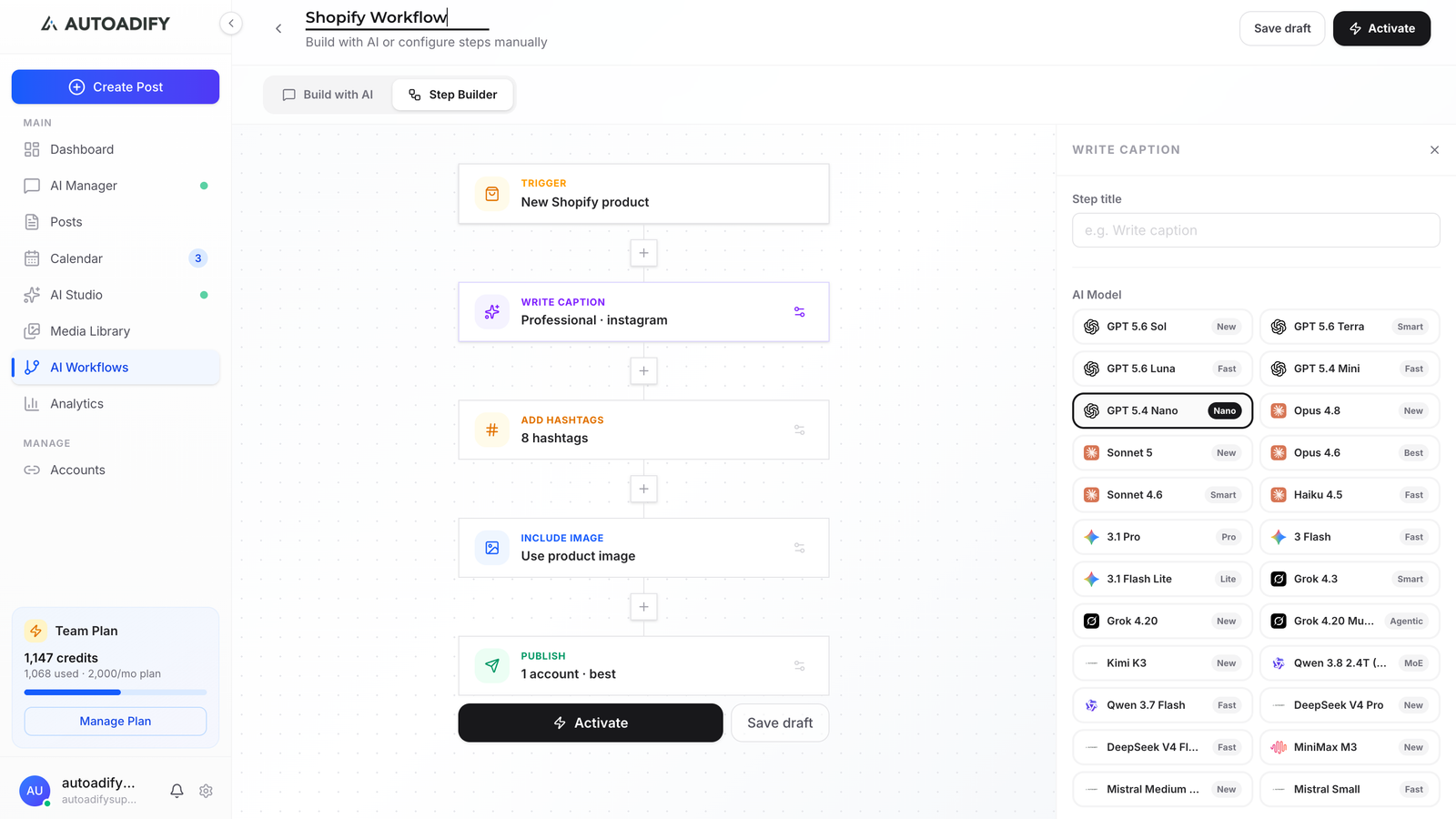
Connect Shopify to Autoadify and build an AI Workflow: trigger "New Shopify product", then Write caption, Add hashtags, Include image and Publish to Instagram. Every product you add becomes a post with its own caption minutes after you save it. Use "Save as draft" to review posts first. Runs on Solo ($19/mo) and above.
Auto-Posting New Products at a Glance
| Feature | AI Workflows with a store trigger |
|---|---|
| Stores | Shopify, WooCommerce, Wix |
| Fires on | A new product being created (not edits) |
| Networks | Instagram, Facebook, TikTok, LinkedIn, X, Threads, YouTube, Bluesky, Reddit |
| Review step | Optional: "Save as draft" keeps every post unpublished until you approve it |
| Plan | Solo ($19/mo, 2 workflows) and above. See pricing |
What you need
- An Autoadify plan with monthly credits. Solo ($19/mo) includes 2 workflows, Pro ($29/mo) includes 5
- Your Shopify store connected (Accounts → Integrations → Shopify). WooCommerce and Wix work the same way
- An Instagram professional account connected, plus any other networks you want the post on
The Manual Way, and Why It Stops After Launch Week
Adding a product takes ten minutes. Posting it takes another fifteen per network: download the photo, crop it to 4:5, write a caption that doesn't read like the product description, find hashtags, schedule it. With three networks, the post costs more time than the listing. Most stores keep that up for a launch and then quietly stop, so the products added in month three never get posted at all.
A workflow does the second job every time, at the moment the product goes live, without anyone remembering to.
Build It: Five Steps
1. Trigger: New Shopify product
In Workflows → New, choose the Shopify trigger. Shopify sends Autoadify a product-created event when you save a product, and the workflow starts with that product's title, description, price, link and photos already available to every step. Edits to existing products don't re-trigger it, so updating a price never re-posts a product.
2. Write caption
Pick a model and tell it what the post is for. The product data goes in automatically, so the prompt is about voice, not facts:
Write an Instagram caption for this new product. Open with the problem it solves or the moment you'd use it, not the product name. Two short paragraphs, one line on the price, end with "Link in bio". No exclamation marks.
A fast, inexpensive model is fine here; the product data does most of the work.
3. Add hashtags
Appends a short set of relevant tags. Keep it to three to five on Instagram; the long block of thirty reads as spam now and doesn't help reach.
4. Include image
Choose Use the product photo to post your own photography untouched. Or choose an AI edit to put the product in a styled scene first: GPT Image 2 Edit keeps the product itself recognisable while it changes the background and lighting.
5. Publish
Select your Instagram account, and add Facebook, Threads or X if you want the launch there too. Pick the timing:
| Timing | Use it when |
|---|---|
| Immediately | You trust the flow and want the post live as the product goes live |
| Delay | You add products at night and want posts a few hours later |
| Fixed time | You want every launch post at, say, 11:00 the next day |
| Best time | You want Autoadify to pick the slot |
| Save as draft | The first few weeks: every step runs, nothing publishes until you approve it on the Posts page |
Before you switch the workflow on, use Test run on an existing product with "Save as draft". It runs every step and shows you the post without publishing it.
What it costs: a caption is a few credits; an AI-styled photo adds a few more. Solo's monthly credits cover a busy store's launches, and Pro suits stores adding products every day.
Set it up on your own store: connect Shopify, build the five steps, and run a test on a product you already have. Start with Autoadify.
Honest Limits
- New products only. The trigger fires when a product is created, not when it's edited, restocked or put on sale. For rotating products you already have, use a scheduled random-product workflow.
- Instagram needs an image. If a product has no photo and you skip the AI image, the Instagram publish fails for that product. Text-only networks still post.
- Bulk imports post in bulk. Importing 200 products at once fires 200 runs. Pause the workflow during an import, or use "Save as draft".
- It writes from your product data. A one-line product description gives the model little to work with. Better descriptions make better captions.
Frequently Asked Questions
Does this work with WooCommerce or Wix instead of Shopify?
Yes. Choose the WooCommerce or Wix trigger instead; the steps are the same.
Will it post products I already have?
No, only products created after the workflow is switched on. Use a scheduled workflow with "Feature a random product" for the existing catalog.
Can each network get a different caption?
Yes. Each network's version is fitted to its own limits, and you can add a second workflow with a different prompt for a network that needs a different voice, such as LinkedIn.
Can I review posts before they go live?
Set the Publish step to "Save as draft". Every post lands on the Posts page unpublished.
What happens if a generation fails?
The run is marked failed, you get a notification, and the credits for the failed generation are refunded.
Which plan do I need?
Workflows run on every plan, but a live store needs monthly credits: Solo at $19/mo for 2 workflows. See pricing.
The Bottom Line
Posting a product shouldn't be a second job you do after listing it. One workflow turns every new Shopify product into a post with its own caption, and a draft setting keeps you in control until you trust it. More store setups are on the Shopify page and the AI Workflows page. Build your first workflow.
Ready to automate your social media?
Autoadify gives you access to 90+ AI models, auto-scheduling across 10+ platforms, Shopify sync, and AI agents — all in one platform.
Start free