Edit photos with AI. Post them from the same place.
Describe the change — new background, product in a scene, object removed, sale text added — and pick from 11 AI image editors, including Nano Banana Pro, GPT Image 2 and Seedream. Then schedule the result to Instagram, TikTok and seven more networks.
Prompt
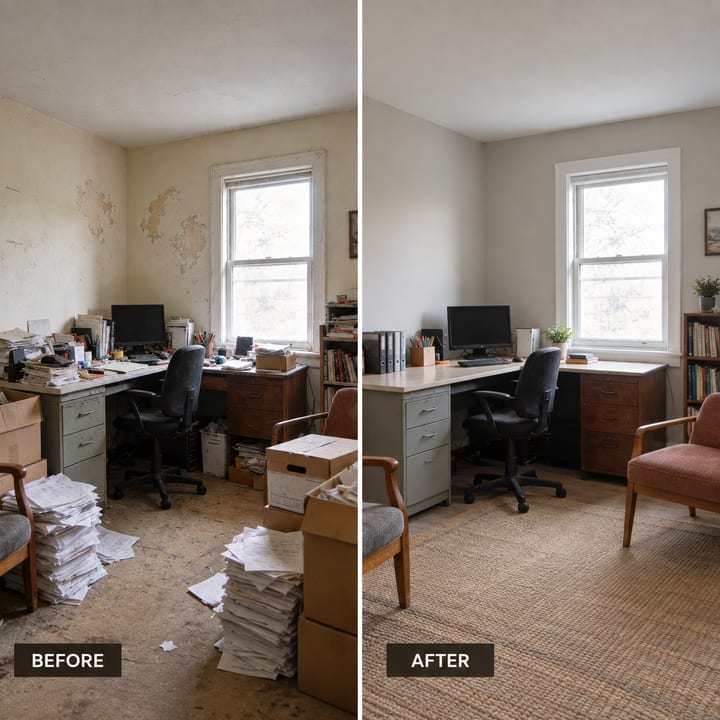
Left panel is the original labelled “BEFORE”, right panel shows the same room decluttered and freshly painted labelled “AFTER”. Identical framing, lighting and camera angle.
Every edit a social post usually needs
Each one is a sentence, not a tutorial. These are the prompts people actually run.
Change the background
Keep the subject, replace everything behind it. The most common edit on any product or portrait shot.
“Replace the background with a sunlit marble kitchen counter, soft morning light”
Remove the background
A clean cut-out on transparent or white, from a one-click background remover. No prompt needed.
“Background Remover — upload, run, done”
Put your product in a scene
Your real product photo, placed in a lifestyle setting — with the label and shape kept as photographed.
“Place this bottle on a beach towel next to sunglasses, late-afternoon sun”
Remove or add objects
Take out a stray cable, a passer-by or old text; add a prop, a plant or a seasonal touch.
“Remove the price sticker and the cable on the left, keep everything else identical”
Restyle, relight or change the season
The same shot at golden hour, in winter, in a film-photo look or in your brand colours.
“Same scene in winter: light snow outside the window, warm interior lamps”
Add text to the image
Headlines, sale badges and labels that render legibly — use a text-in-image editor for these.
“Add a bold “30% OFF THIS WEEKEND” badge in the top-right corner”
Before & after
Your photo as the before, the result as the after, side by side and labelled. A built-in Studio recipe.
“After: the same room decluttered and freshly painted sage green”
Combine several images
Some editors take more than one reference — a product plus a setting, or a whole set to keep consistent.
“Put the jacket from image 1 on the model in image 2, same pose and lighting”
How to edit a photo with AI in three steps
Add your photo
Upload it, pick it from your media library, or use a product photo synced from Shopify or WooCommerce.
Describe the edit
Write what should change in plain words. Choose an editor, or let Autoadify pick the recommended one for the job.
Post it or schedule it
The edit lands in your media library. Add a caption and publish or schedule it — no download and re-upload.
11 AI image editors, chosen per edit
Each model is good at something different. Pick one per edit — or let Autoadify pick the recommended editor for the job.

Nano Banana Pro Edit · Google
Edit existing images — HD quality
Nano Banana 2 Edit · Google
Edit existing images — fast
GPT Image 2 Edit · OpenAI
OpenAI GPT Image 2 — image to image

Seedream 4.5 Edit · ByteDance
ByteDance Seedream 4.5 — image to image
Seedream 5 Lite Edit · ByteDance
ByteDance Seedream 5 Lite — fast image to image
Background Remover · fal
Remove background from any image

Grok Imagine Edit · xAI
xAI Grok Imagine — image to image

Qwen Image 3 Edit · Alibaba
Qwen Image 3 — edit with up to 4 reference images
Krea 2 Medium Edit · Krea
Krea 2 Medium — restyle from one reference image
Krea 2 Medium Turbo Edit · Krea
Distilled Krea 2 Medium — fast restyle from a reference
Seedream 5 Pro Edit · ByteDance
Seedream 5 Pro — edit with up to 14 reference images
Editing a product? Use a photo-editing model — style-reference editors redraw the subject. Which editor for which edit
Not a photo app with a share button
Standalone AI photo editors stop at the download. Here the edit is the first step of the post.
Edit by chatting with the AI Manager
“Make the background of yesterday's product shot a sunset and schedule it for Friday.” The agent edits, drafts the caption, and waits for your approval before posting.
Automate it with a workflow
A new product in your store can trigger the image, the caption and the post with nobody in the loop.
Logo and brand-kit overlays
Stamp your logo, colours and text on any image with the brand kit. Composited, not generated — so it costs no credits.
A searchable media library
Every original and every edit is kept and searchable by what is actually in the picture, not by its filename.
Need the right dimensions? Social media image sizes for every platform
AI photo editing, answered
What is an AI photo editor?
An AI photo editor changes an existing image from a written instruction instead of brushes and layers. You upload a photo, describe the edit — “replace the background with a beach”, “remove the person on the left”, “add a sale badge” — and an image-to-image model returns the edited picture. Autoadify runs several of these models and lets you post the result straight to social media.
Is there a free AI photo editor?
Yes. Autoadify's Free plan needs no card and includes 25 one-time credits, which reach Background Remover, Grok Imagine Edit, Krea 2 Medium Turbo Edit. Higher-detail editors such as Nano Banana Pro Edit and Seedream 5 Pro Edit are on paid plans.
Can AI change the background of a photo?
Yes — it is the most common AI edit. Describe the new background in the prompt and the editor keeps your subject while replacing what is behind it. For a plain cut-out with no new background, use the Background Remover instead.
Which AI model is best for editing product photos?
Pick an editor that preserves the source: Nano Banana Pro Edit for the highest detail, GPT Image 2 Edit or Qwen Image 3 Edit when the image also needs legible text, and Seedream for fast, low-cost edits. Avoid style-reference models such as Krea 2 Edit for products — they redraw the subject rather than keeping it as photographed.
Will the AI keep my product, logo and label the same?
The photo-editing models are chosen because they keep the subject recognisably itself, and the prompt should say so explicitly (“keep the product and label identical”). Fine print can still drift, so check small text before you post. For a logo that must be pixel-perfect, add it afterwards with the brand-kit overlay, which places your actual file rather than generating it.
Can I edit photos with AI for Instagram, TikTok and other networks?
Yes. Edited images go to your media library and can be published or scheduled to Instagram, Facebook, TikTok, LinkedIn, X, Threads, YouTube, Bluesky and Reddit from the same place, with a caption written for each network.
Do I need to label AI-edited photos on social media?
Meta, TikTok and YouTube ask you to disclose realistic AI-generated or significantly altered content, especially images of real people or events. A background swap on a product shot is a routine edit; a realistic fake of a person is not. Use the platform's AI label when in doubt — it does not reduce reach.
How much does an AI photo edit cost?
Each edit spends credits, and the cost depends on the model — budget editors cost a fraction of the HD ones. The editor picker shows the price before you run it, and a generation that fails is refunded.
Your next post is one sentence away.
Upload a photo, describe the edit, schedule it. Free to start, no card required.