Quick Answer
In Autoadify, open Accounts → Integrations → Wix and click Connect. Wix asks which site to install the Autoadify app on and shows its read-only permissions; approve, and your Wix Stores products sync. Then turn on a workflow: a new-product workflow posts every product you add, and a Random product workflow keeps your in-stock catalog rotating on a schedule. Both write captions per network with your choice of 90+ AI models, can restyle the product photo with AI, and publish to Instagram, Facebook, TikTok, LinkedIn, X, Threads, YouTube, Bluesky and Reddit.
Autoadify for Wix at a Glance
| What it connects to | Wix Stores, on any Wix site built in the Wix Editor or Wix Studio |
|---|---|
| How it connects | Installs as a Wix app. No API keys to create, copy or rotate |
| Access | Read-only: products and basic site details. No customers, orders or contacts, and it never edits your store |
| Keeping in sync | A full sync on install, then Wix product webhooks for every product you add, edit or remove |
| Catalog versions | Works with both the current Wix Stores catalog and the original one |
| AI models | 90+ named models on one credit balance: GPT, Claude and Gemini for captions; Nano Banana and GPT Image for product photos; Veo, Kling and Runway for video |
| Social networks | Instagram, Facebook, TikTok, LinkedIn, X, Threads, YouTube, Bluesky and Reddit |
| Price | Free plan with one connected store; paid plans with no store limit. See pricing |
The Problem: Adding a Product Is Only Half the Job
Adding a product to Wix Stores takes a few minutes: name, photos, price, stock, a description. Then the second job starts. Download the photo, write an Instagram caption, rewrite it shorter for X, make a vertical version for TikTok, find hashtags, and schedule each one. For a store with fifty products and four networks, that is two hundred posts before a single sale, restock or seasonal campaign.
Most stores do it for launches and then stop. The products already in the catalog, often the ones that sell, rarely get posted again. Autoadify takes over both jobs: the launch posts for new products and the steady rotation of the ones you already have.
How It Works: One Product, From Your Dashboard to Every Feed
1. You add a product in Wix
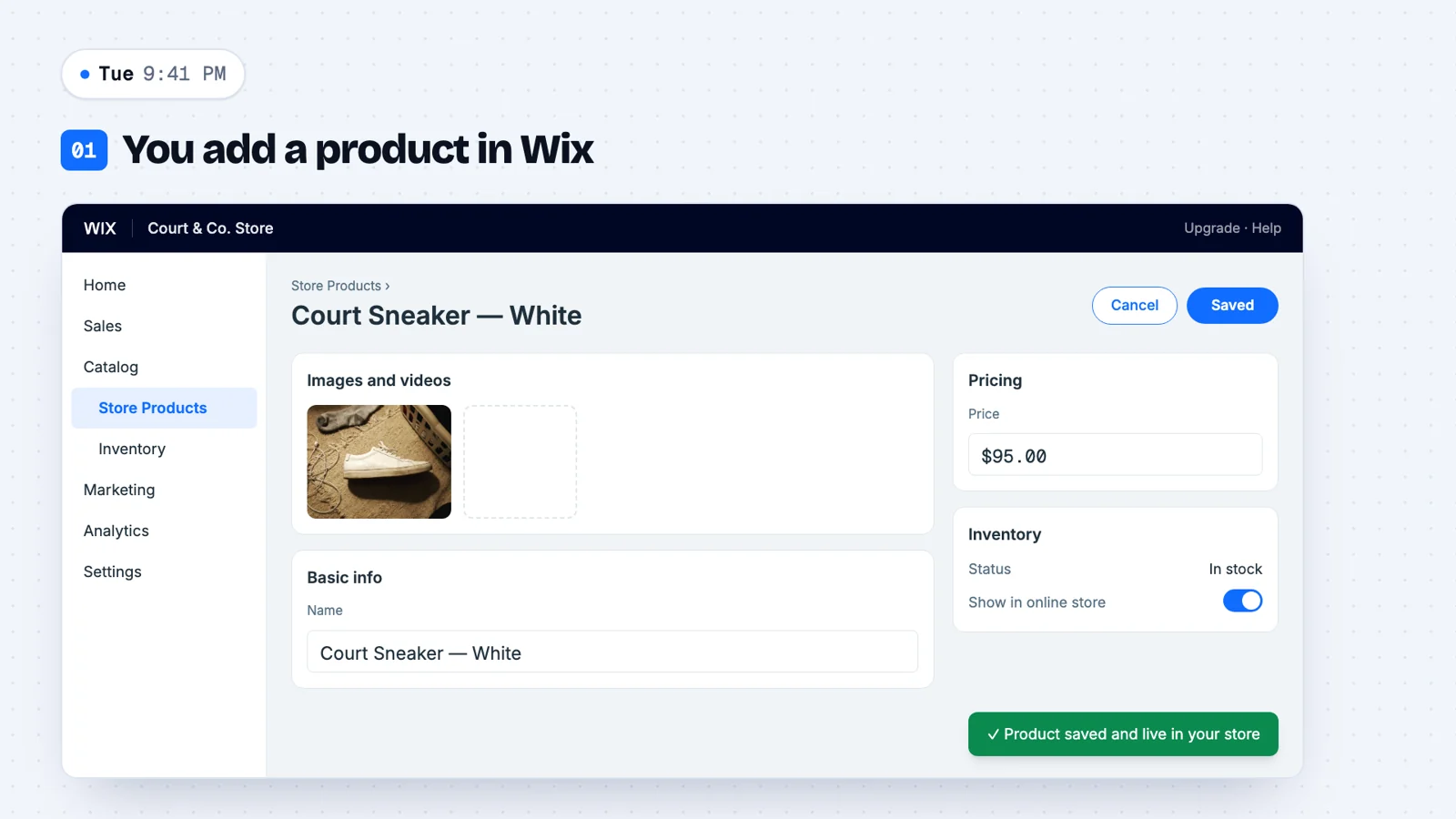
Nothing about how you run your store changes. You add the product in your Wix dashboard as usual and save it.
2. Autoadify sees it instantly
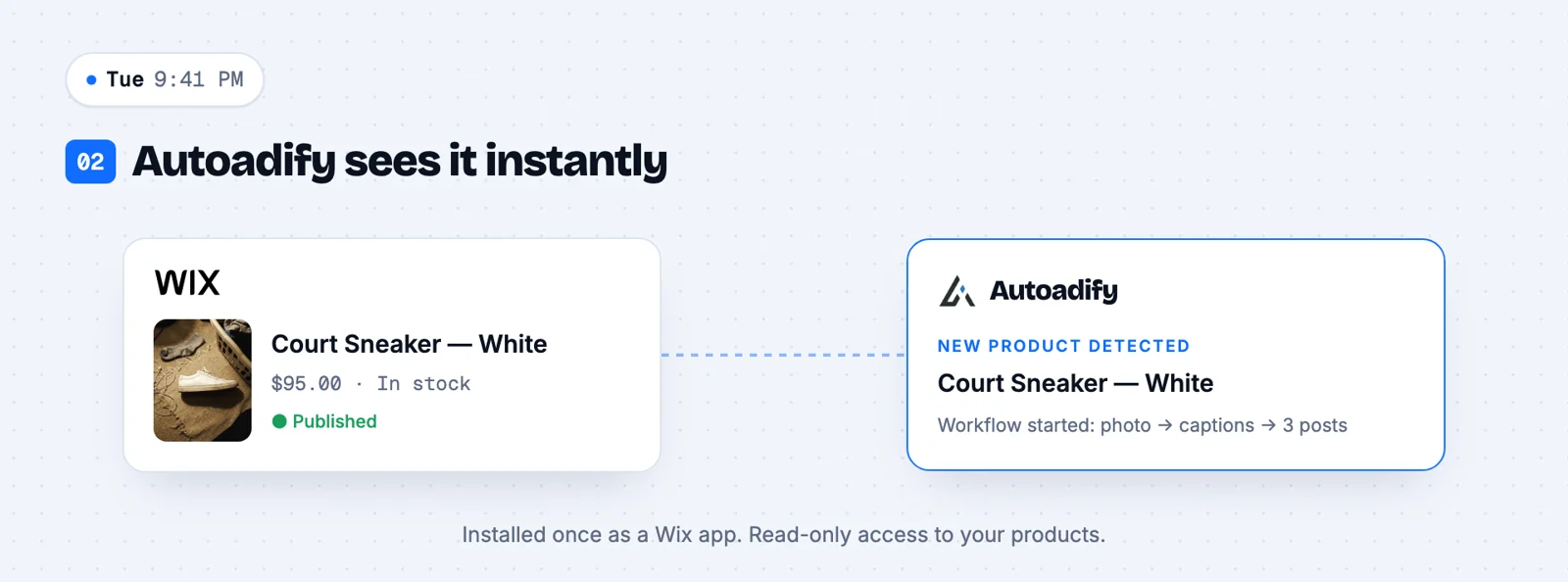
Wix sends a product-created event to Autoadify the moment the product is saved. Autoadify records the product, and if you have a new-product workflow switched on, it starts right away. Edits and deletions arrive the same way, so the synced catalog matches your store.
3. Your plain photo becomes a lifestyle shot
A workflow step, or a request in AI Studio, can edit the product photo into a new scene while keeping the product itself unchanged. Write the prompt as what to change (the setting, the light) and what to keep (the product, its colour, its label). The result is saved to your media library.

4. A post for every channel, and you approve
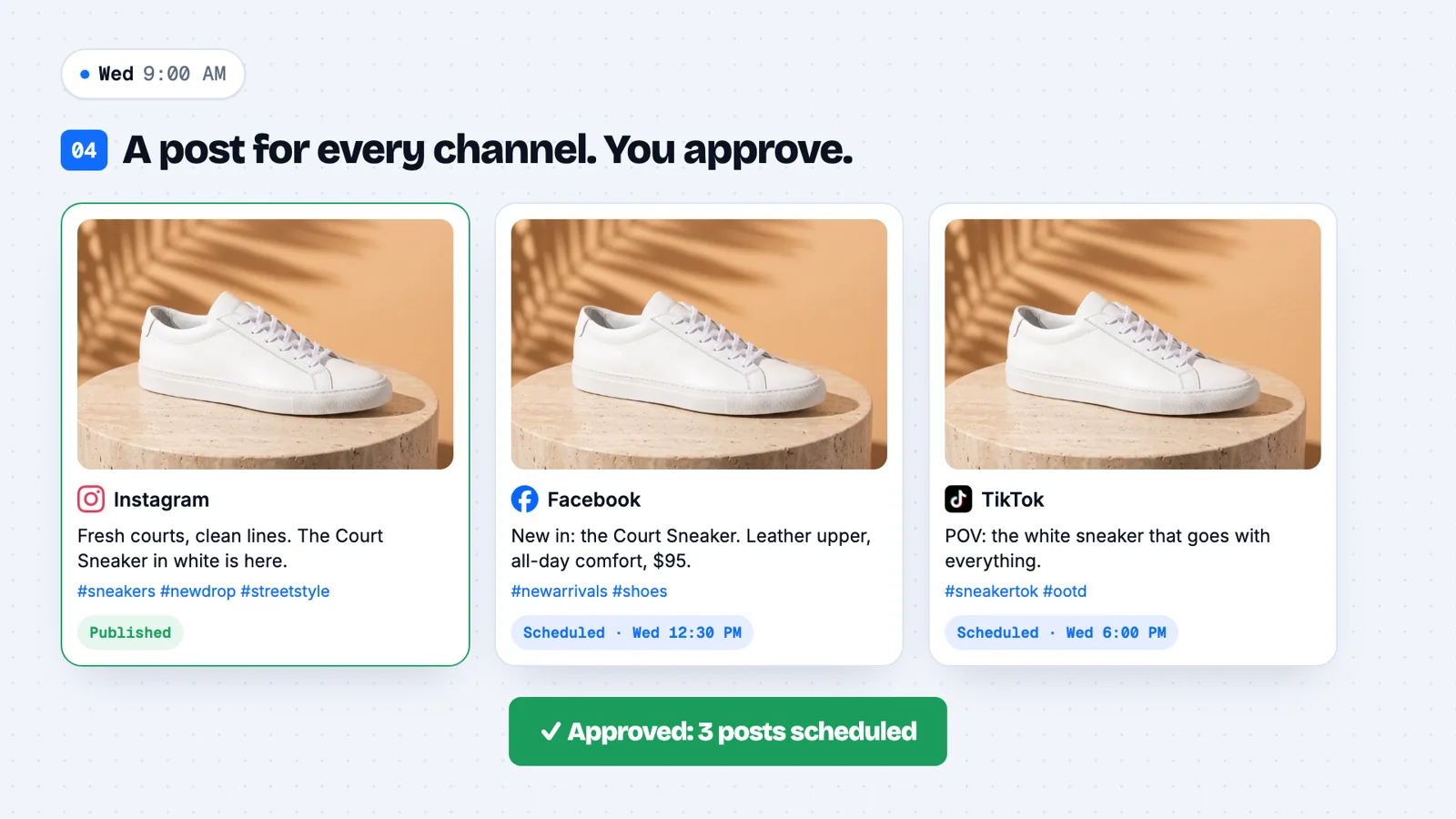
Each network gets its own caption: shorter and punchier for X, a hook for TikTok, more detail for Facebook, with hashtags suited to each. Workflows can publish on their own, or save drafts for you to approve first. The AI Manager always waits for approval.
5. On quiet weeks, it picks a product for you
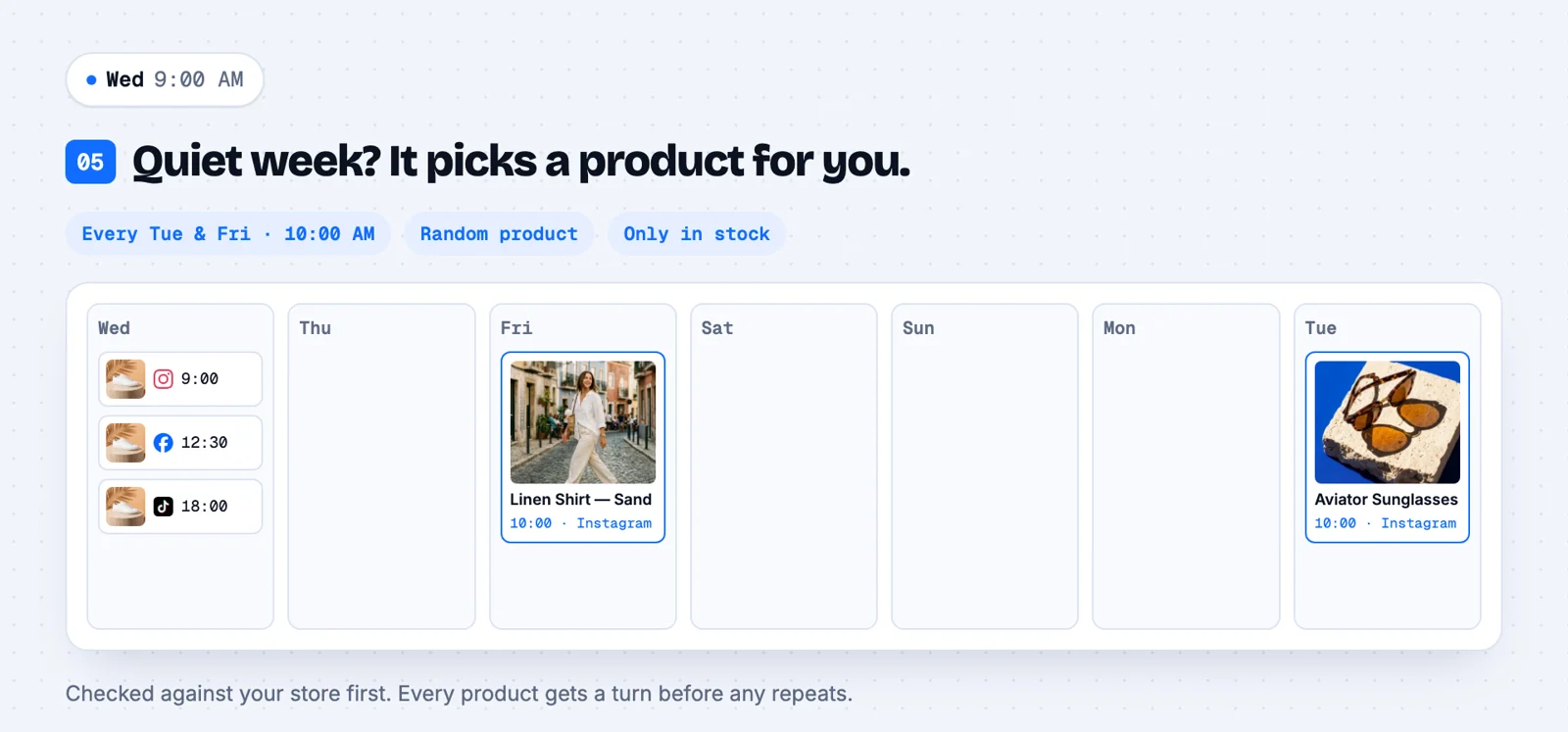
The Random product trigger features one in-stock product on the schedule you set. Before posting, it checks the product live with your Wix store, so anything that sold out or was hidden since the last sync is skipped. Every product gets a turn before any repeats.
How to Set It Up
 Wix Stores
 Instagram
 TikTok
 Facebook
 Threads
- Connect Wix. In Autoadify, open Accounts → Integrations → Wix and click Connect. You're sent to Wix to install the Autoadify app.
- Pick your site and approve. Choose the site that runs your store. Wix lists the permissions: reading products and basic site details. Approve, and Wix returns you to Autoadify.
- Let the catalog sync. Products import straight away. Titles, descriptions, prices, photos, stock and product links come across; your site doesn't need to be published, though product links point to your live store once it is.
- Connect your social accounts. Instagram needs a Business or Creator account linked to a Facebook Page, which is Meta's rule for every publishing tool.
- Turn on a workflow. Start with one of the two below, in draft mode if you want to approve the first few posts.
Two Workflows to Turn On First
New product → posts on three networks
Trigger: Wix, new product. Steps: write a caption in your brand voice, add hashtags, restyle the product photo, publish to Instagram, Facebook and TikTok. Every product you add from now on gets announced without you opening a single social app.
Random product, twice a week
Trigger: Random product, source Wix, in stock only, every Tuesday and Friday at 10:00. Steps: caption, hashtags, the product's own photo, publish. This is the one that keeps older products selling.
Both run on credits for the AI steps. Using the product's own photo costs nothing, and some caption models are free, so a rotation can run without spending credits.
Prompts for the AI Manager
For one-off campaigns, ask the AI Manager in plain words. It searches your synced Wix catalog, so the products, prices and links are real:
“Plan a Black Friday week for our candles and gift sets: one post a day on Instagram and TikTok, each with a lifestyle image made from the product photo.”
“Find three products under $40 and write a gift-guide carousel caption for Instagram.”
It drafts the posts and images and shows you the plan. Nothing is scheduled until you approve it.
What Autoadify Can and Can't See
- Can: read your products (names, descriptions, prices, images, stock, visibility, product links) and your site's name and URL.
- Can't: edit products, prices or your site, or read customers, orders or contacts.
- Ending access: remove the app in your Wix dashboard and Autoadify can no longer read your store. Disconnecting in Autoadify deletes the synced product data.
FAQ
Do I need to copy API keys from Wix?
No. Autoadify installs as a Wix app, which is how Wix grants access to a third-party service.
Does it work with Wix Studio sites?
Yes. Any Wix site with Wix Stores works, whether it was built in the Wix Editor or Wix Studio.
My store was moved to the new Wix Stores catalog. Does that matter?
No. Autoadify reads both the current and the original catalog and checks which one your store uses each time it syncs.
Will it post products that are out of stock?
Not from a Random product workflow set to in stock only: it checks stock with Wix right before posting.
Can I connect Wix alongside Shopify or WooCommerce?
Yes. On paid plans there is no store limit, and the AI Manager and workflows can use products from any connected store. See the Shopify and WooCommerce pages for those stores.
The Bottom Line
Wix keeps your products; Autoadify keeps them in front of people. Install it once, turn on a new-product workflow and a twice-weekly rotation, and every product, new or old, keeps showing up across nine networks. More on the integration: Autoadify for Wix.
Ready to automate your social media?
Autoadify gives you access to 90+ AI models, auto-scheduling across 10+ platforms, Shopify sync, and AI agents — all in one platform.
Start free